Start here
Your first card
Describe what you want to make, review the draft, and ask for changes. When it looks right, build it and try the finished work.
On this page
First, install the board and connect a coding tool. This walkthrough uses Coding and follows the interactive demo: adding encrypted note sync to Notely, a fictional notes app. Try the demo to follow the same example, or use these steps for a change in your own project. Planning and build time depend on the task and coding tool.
1. Explain the idea
Open New idea and describe what you want:
Sync my notes between my laptop and my phone. Encrypt them end to end, so even our server can't read them.
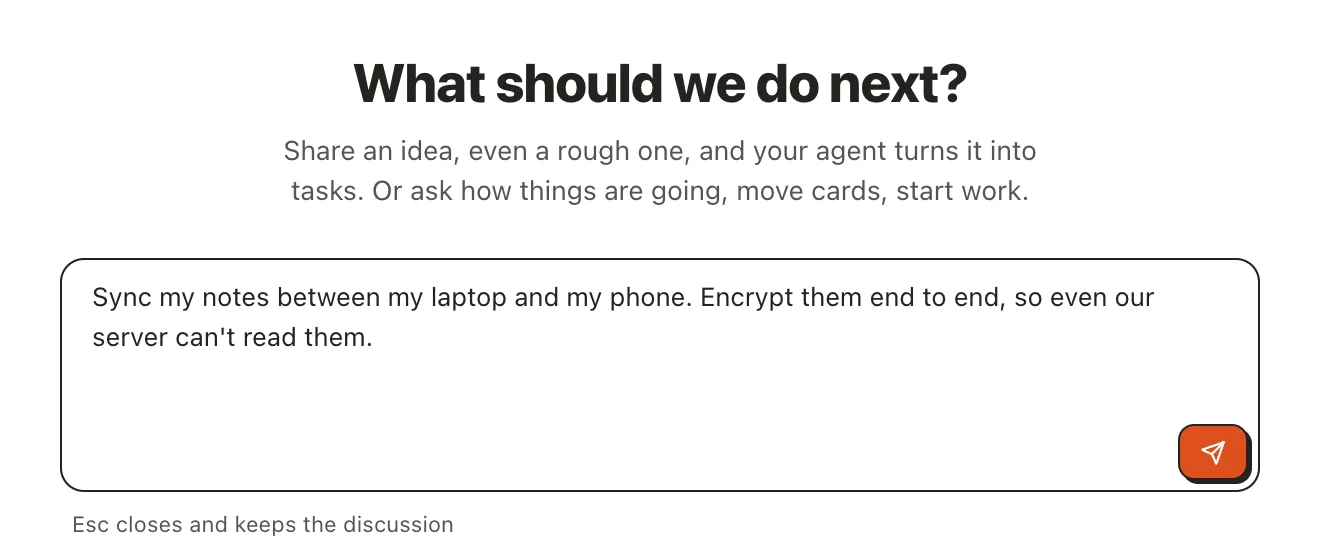
Send the idea to your agent. Discuss it if you need to work out the requirements, then use Plan tasks when you are ready to make cards.
In the demo, the idea becomes Sync notes across devices (#38), with six tasks. Open the plan, then open its first task: Store notes in the cloud with end-to-end encryption (#39). That is the card we will take through to delivery.
2. Review the screen draft
Open the screen draft on #39. It shows the proposed Sync settings screen before the feature is built. Read the text and check what someone must do to turn sync on.
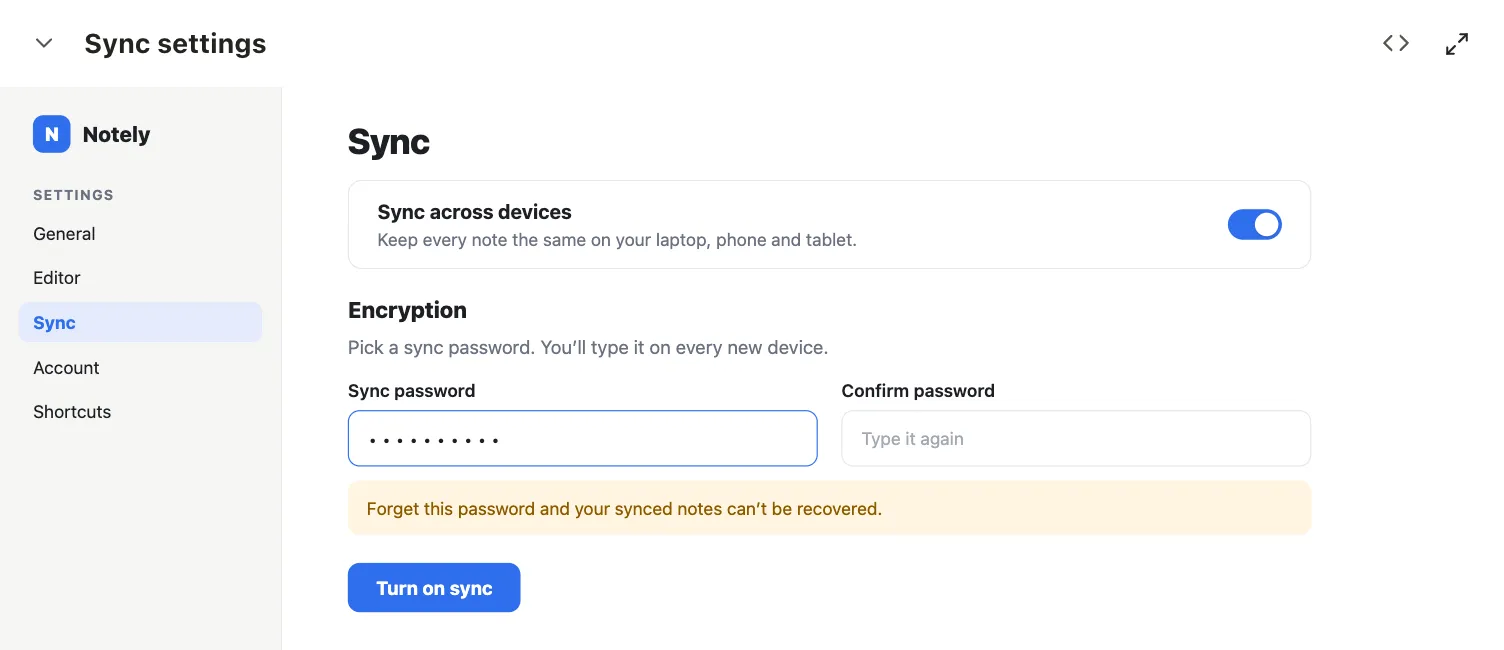
The first draft asks for a sync password. Use Revise to request a change:
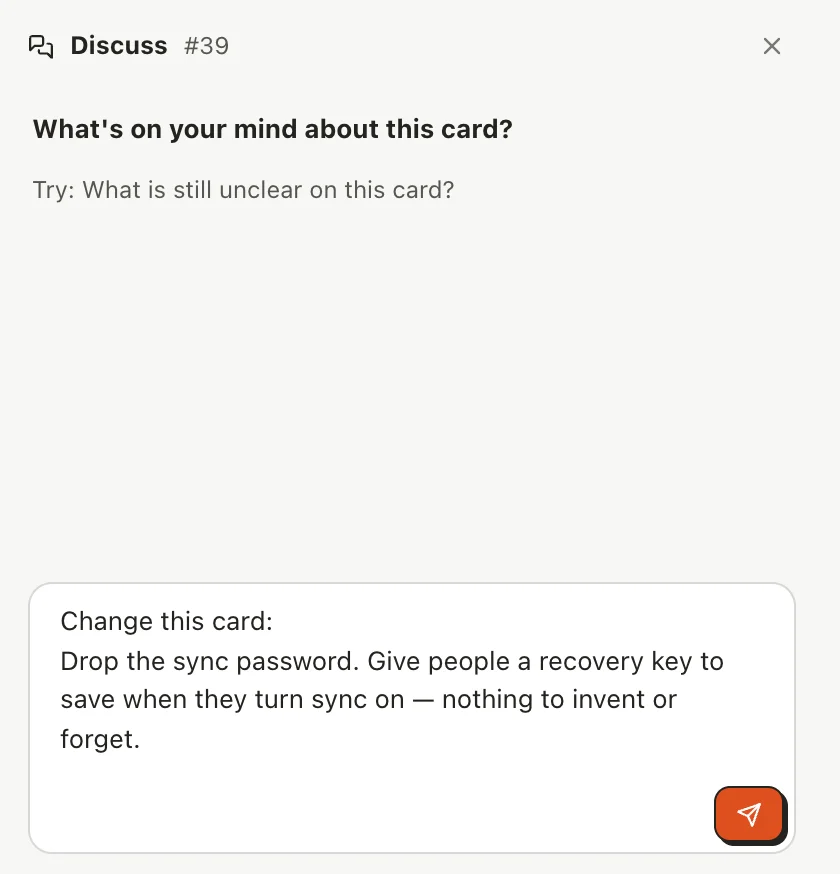
Drop the sync password. Give people a recovery key to save when they turn sync on — nothing to invent or forget.
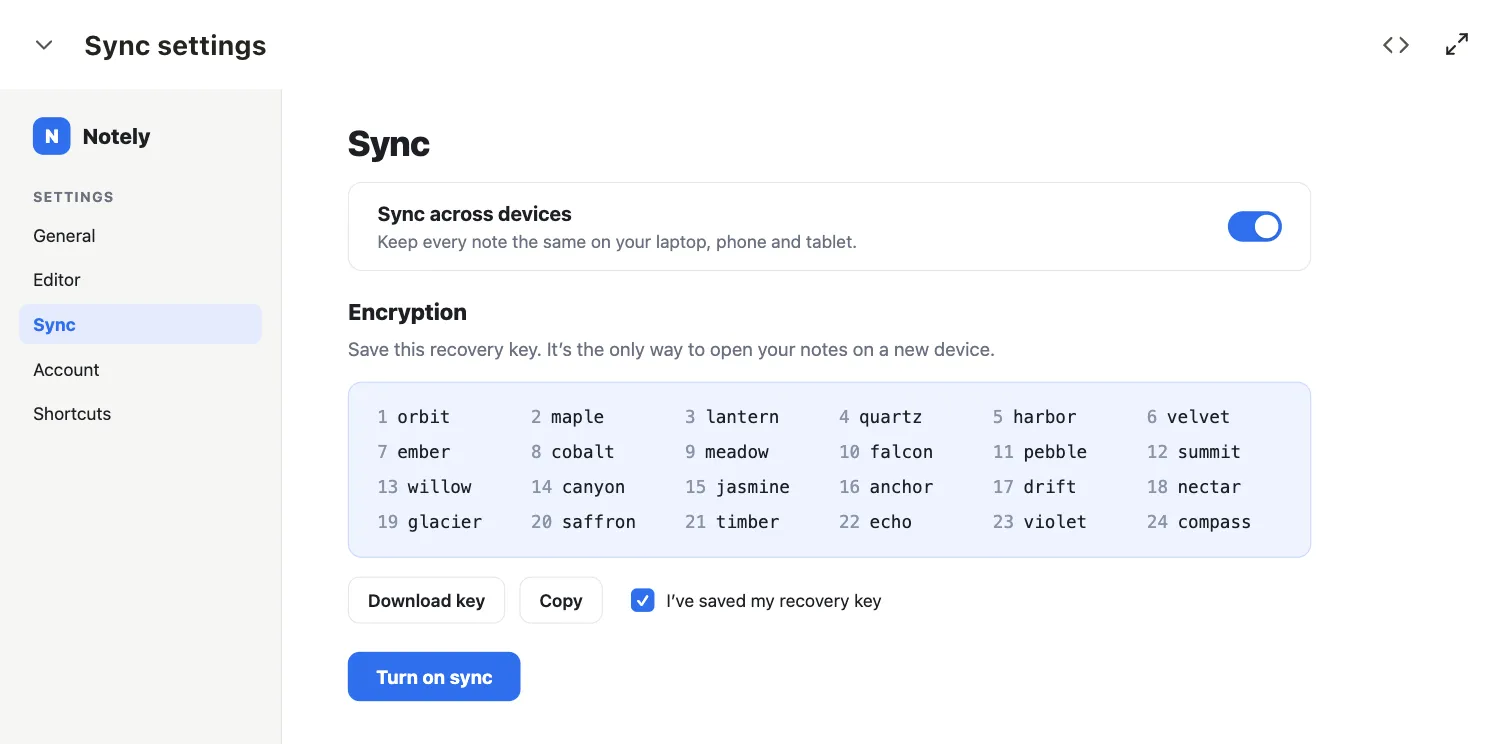
Review the updated screen draft. It now shows a 24-word recovery key, Download key and Copy, and a confirmation that the key has been saved before Turn on sync becomes available.
For your own card, open the draft in its specialist section. If a screen change has no draft, ask for a screen draft before building. Review any copy stage first when the card asks you to approve it before the screen is drafted.
3. Answer the questions
The card asks how someone recovers their notes after losing every device. The recovery-key request answers that question too, so the agent updates the requirements and marks #39 ready to build.
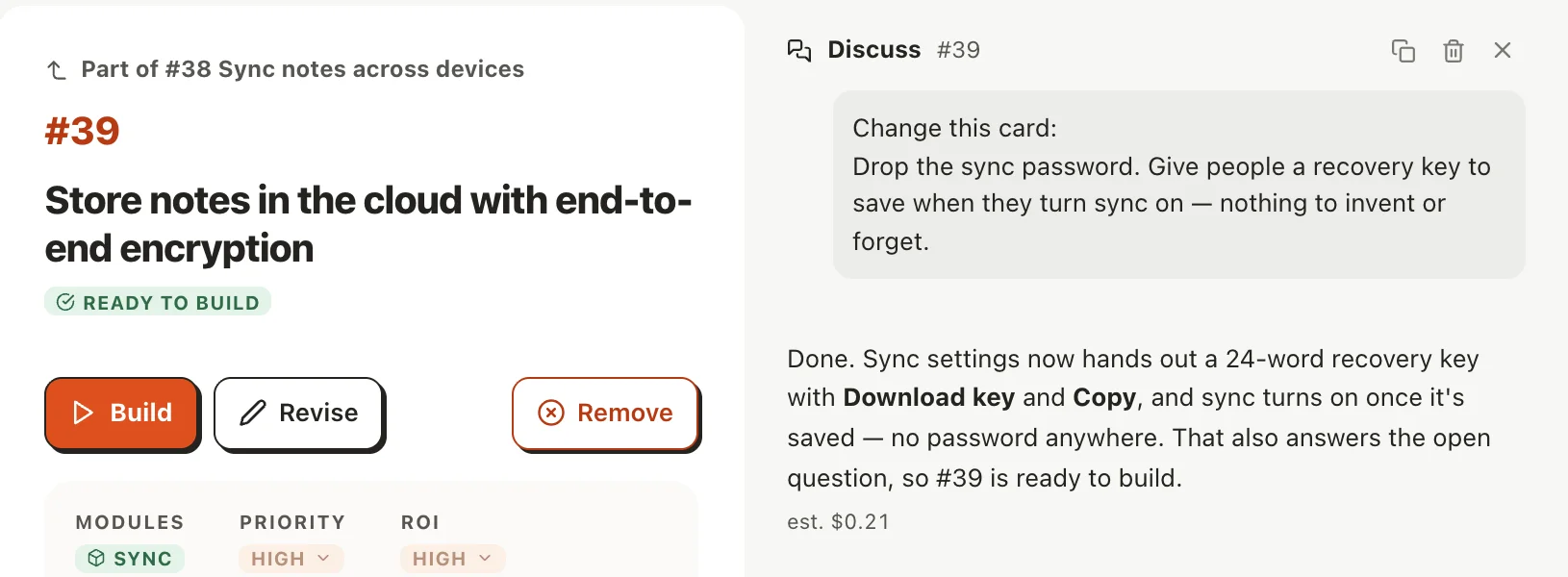
If your card still has open questions, use Resolve to choose an option or write your own answer. Check the updated card and approve the draft only after reviewing it. Applying answers does not start the build.
4. Build and deliver
Press Build once the draft and requirements are settled. Follow progress in Runs and answer any further questions on the card.
Coding runs the project's required checks. With automatic Git commits enabled, a successful build lands on your branch and archives the card. See Build a card for other commit settings.
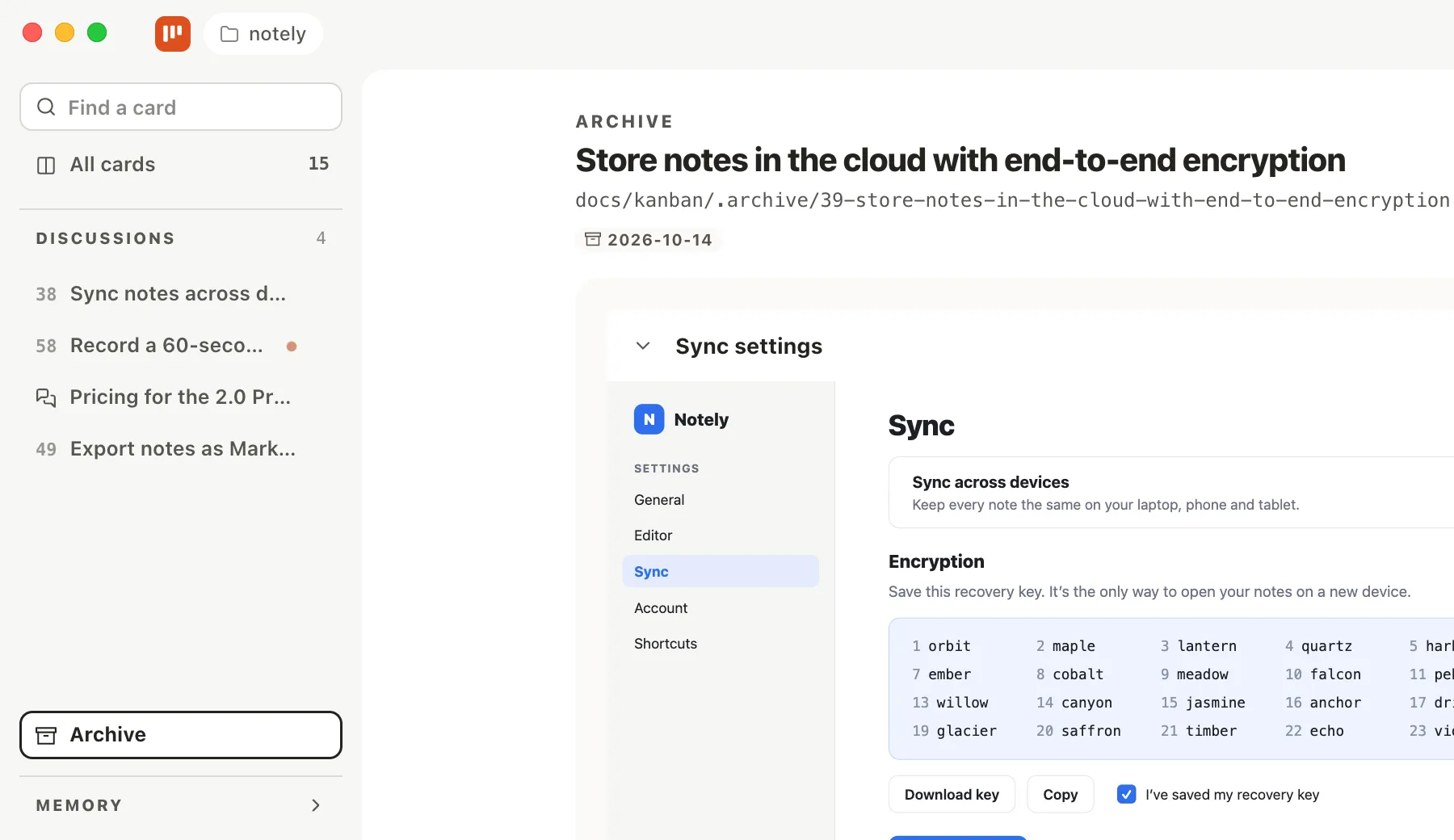
The demo ends with #39 in Archive. Its encrypted-storage change has been delivered; the remaining sync tasks are still on the board.
5. Try the delivered work
The archived card shows what changed and where it landed.
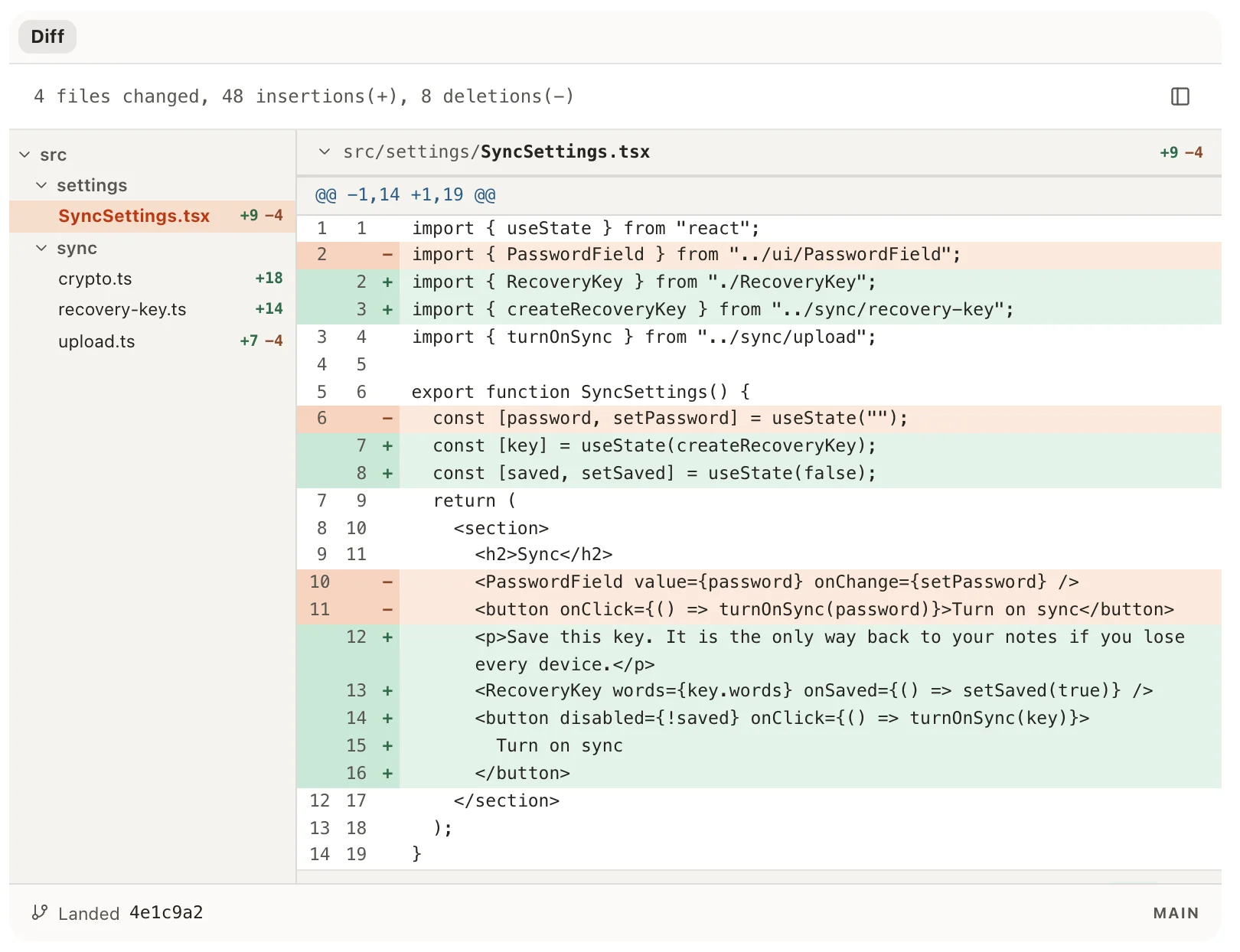
In your project, open the changed screen and compare it with the approved draft. For this example, check that you can download or copy the recovery key, that sync stays unavailable until the key is saved, and that turning it on works. Check the card's other requirements as well, including behavior the screen draft could not show.
If something needs correcting, describe what happened and the expected result in a new task.
Continue with the daily loop. Small fixes can go straight to implementation when there is no draft or product decision you need to review.